
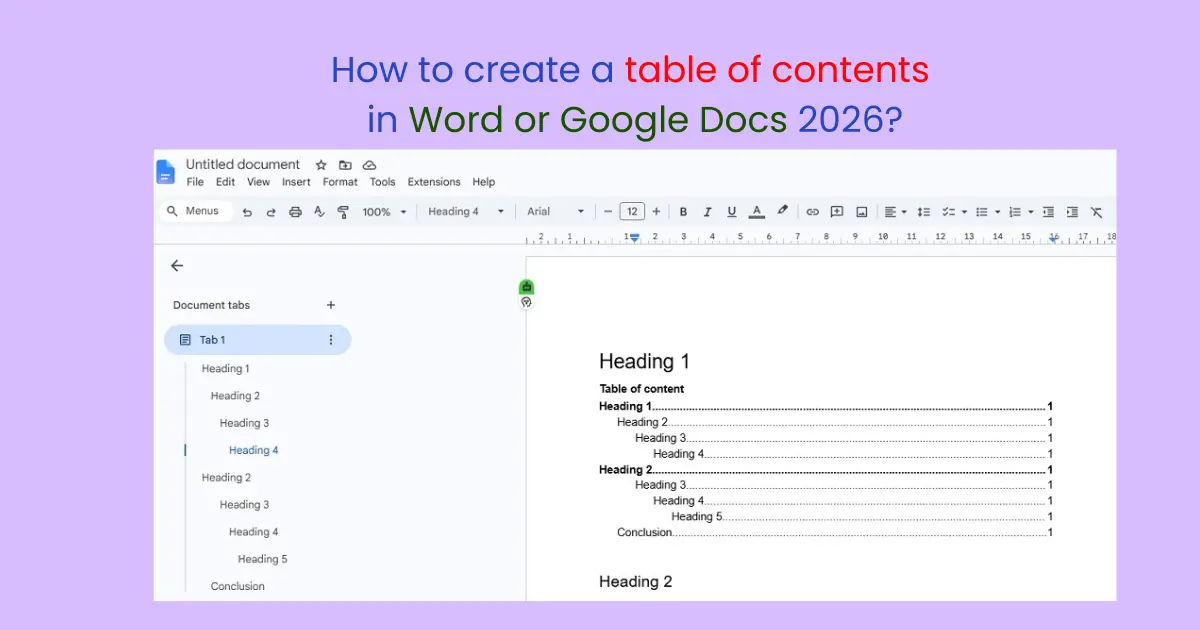
Introduction:
If you are creating a long document in Microsoft Word (Microsoft Word official), like a project, report, notes, e-book, or blog draft, having a table of contents (TOC) is very important. It makes your document professional and helps the reader go directly to any section. Many people create the TOC manually in Word, which takes a lot of time. But the good thing is that Microsoft Word has a built-in feature that lets you create an automatic table of contents in just a few clicks.
In this article, we will learn in detail:
- What is a Table of Contents?
- Why is TOC important in Word?
- Step-by-step, how do you create a TOC?
- How to update a TOC?
- What are common mistakes and solutions?
- What are advanced customization options?
Even if you are a beginner, after reading this guide, you will be able to easily create a TOC like professionals. But if you already know, you can comment ‘yes’ in the comment section.
What is a table of contents?
“Table of Contents” means a list of topics. It is given at the beginning of any document or article, where all the headings and their page numbers are written.
For example, I am writing: –
- Introduction (Heading 2)
- Chapter 1 (Heading 2)
Subchapter 1.1 (Heading 3)
Sub Subchapter 1.2 (Heading 4)
…
- Chapter 2 (Heading 2)
Subchapter 2.1 (Heading 3)
Sub Subchapter 2.2 (Heading 4)
…
- Conclusion (Heading 2/3/4)
This helps the reader understand what has been covered in the article or document, and readers can also click on the headings in this table of contents to easily go to any section of the article or document.
Why is a table of contents important in Word?
TOC is not just for show; it has many practical benefits for both readers and writers. I have tried to mention all those benefits below: –
Looks professional: If you are giving a document to school, college, the office, or a client, a TOC makes it look organized.
Easy navigation: You can quickly find a specific topic in a long document. This means anyone opening the document or article can directly reach any section with just one click using the TOC.
Automatic page number updates: If you add or remove anything in the headings of an article or document, the TOC automatically updates those changes.
Saves time: It eliminates the need to manually type the headings in the document, which saves a lot of time and effort.
What is important to do before creating a table of contents in Word?
Before creating a TOC in Microsoft Word, you need to properly set and organize all the headings in your documents or articles. This is the most important step in creating a TOC. If you don’t apply the heading styles correctly, Word won’t be able to create the TOC properly.
I have explained the correct way to do this step by step below:
Step 1: Formatting the Headings
First, you need to identify which headings should be in your document.
For example:
- Main heading → Heading 1
- Subheading → Heading 2
- Sub-subheading → Heading 3
How do you do this correctly?
- First, select the heading
- Then go to the Home tab at the top
- Then go to the Styles section
- Then choose Heading 1 or Heading 2
For example: –
If you are writing an article, let me explain using this article itself. I have kept ‘How to create a TOC in Word’ as the title, which will come in Heading 1 of the whole article. After this, I will write the introduction, which I will put in heading 2. The introduction contains a brief description of the article, explaining what content will be in the entire article. After this, whatever subheadings you give under Heading 2, give them subheading numbers in increasing order. Like: –
Heading 2
- Heading 3
- Heading 4
- Heading 5
I provided the official Microsoft heading style guide link below; you can click here Headings – Microsoft Style Guide | Microsoft Learn
Step 2: Place the cursor in the right spot in Word or Writer.
Now, after writing the article and completing it, go to the beginning of the document and place the cursor where you want to show the Table of Contents. Usually, TOC is placed after the title page or after the introduction.
The best placement for TOC should be the following:
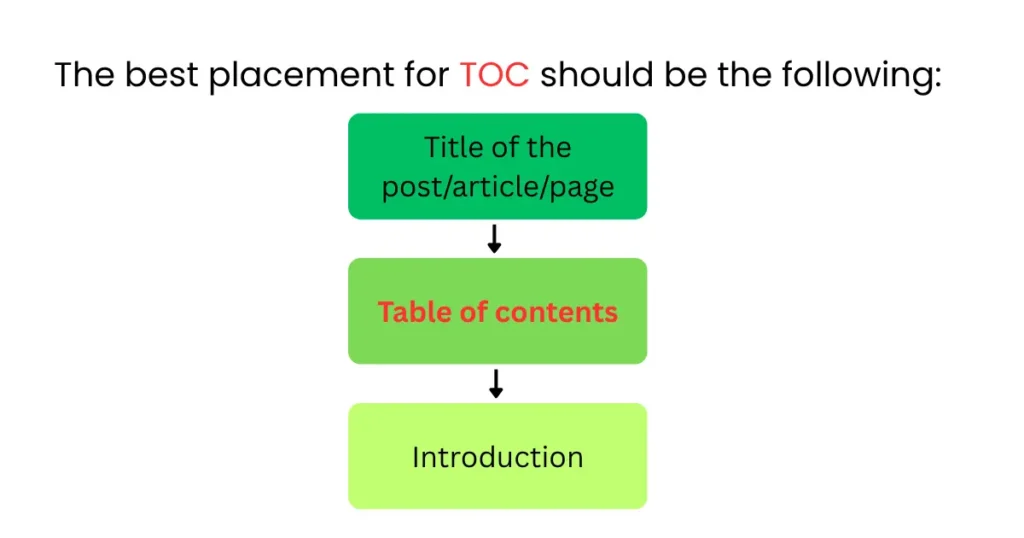
This is considered the most professional layout.
Step 3: Open the References Tab
Now, after placing the cursor in the right spot, go to the top menu in Word, where you will find the References tab. In that section, there is an option for TOC.
Step 4: Click on “Table of Contents.”
In the References tab, click on the Table of Contents option, and here you will get 3 options:
- Automatic Table 1: In this, Word will automatically detect the headings and create the TOC.
- Automatic Table 2: This does the same work, just with a different style.
- Manual Table: In this option, you can design the table of contents yourself.
For beginners, Automatic Table is always the best.
Step 5: Insert Automatic TOC
As soon as you click on Automatic Table, your TOC will be created, and Word will automatically do the following:
- Select all the headings
- Add page numbers
- Properly align everything
After this, your document will be professionally ready.
How to update a TOC?
Sometimes you and I add new content in a document, and in such cases, the page numbers change, making it necessary to update the TOC so that content navigation remains correct.
The way to update TOC is as follows:
- First, click on the TOC.
- After this, the ‘Update Table’ option will appear; click on it.
Then 2 options will appear:
- Update Page Numbers Only: Click on this option if you only want to change page numbers.
- Update Entire Table: Click on this option if you want to add/remove headings.
- If you have added a new section, always choose ‘Update Entire Table.’
How to make a custom table of contents?
If you want to design the TOC according to your preference, you should follow the following steps:
Steps:
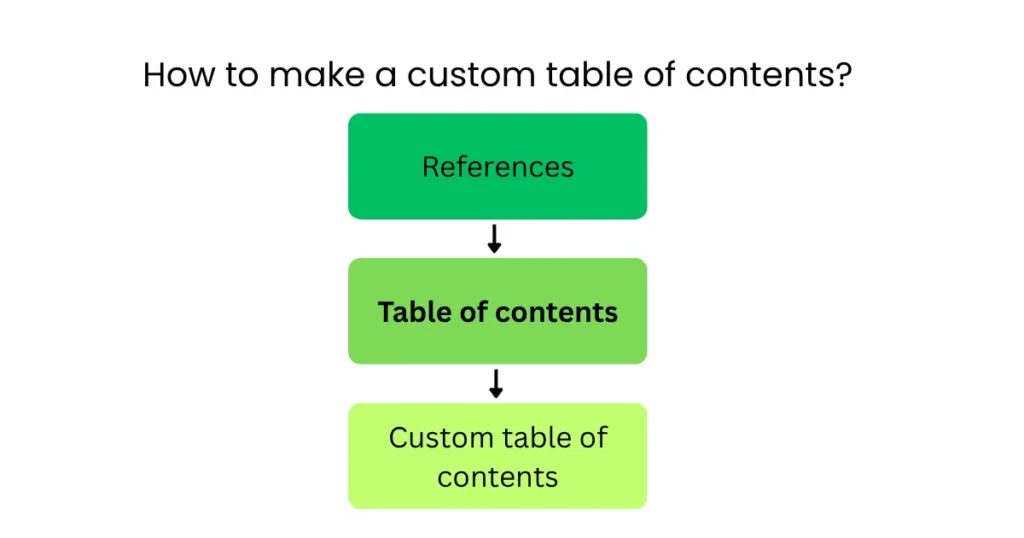
Here you get options:
- Show page numbers
- Right-align page numbers
- Change tab leader
- Select levels
You can check the official Microsoft support TOC guide; I provided the link below:
Format or customize a table of contents in Word | Microsoft Support
How to Add Dots in a TOC?
You must have seen in many documents the following:
Chapter 1 ………. 5
These dots are called Tab Leaders. You can change them by going to Custom TOC settings. There are several options, such as:
Options:
- Dotted line
- Dashed line
- Straight line
- None
Among the options mentioned above, the dotted style has been the most popular for centuries.
How to Delete a TOC?
If you want to remove the TOC, you can follow these steps:
- Click on the TOC
- Open the References tab
- Table of Contents → Remove Table of Contents
That’s it; your TOC will be instantly removed.
Common Problems and Solutions Related to TOC
1: Heading not appearing in TOC
- Reason: Heading style hasn’t been applied.
- Solution: Apply heading 1/2/3 properly.
2: Page number in TOC is showing wrong
- Possible reason: You haven’t updated your TOC.
- Solution: Update your table.
3: Extra text appearing in TOC
- Possible reason: You accidentally applied heading style to normal text.
- Solution: Format that text in the normal style.
Can TOC be created on mobile?
Yes, it can be created, but mobile offers limited features. The MS Word mobile app only allows basic editing. So, it’s best to use a laptop or desktop computer to format your documents properly. For writing the best documents or articles, you should always use the following devices:
- Laptop
- Desktop
- Tablet with keyboard
So, creating TOC on these devices is really easy.
Why is a TOC important for students?
If you are a student and in school and college, you
- Make assignments
- Write project reports
- Create a thesis
- Make notes
Then you should definitely make a TOC. It makes your documents and projects better and allows easy navigation within the documents. It also helps the reader easily understand what all is written inside. Therefore, teachers and professors also consider such documents professional presentations.
How is TOC useful for bloggers?
If you are a website blog writer or write blog posts in MS Word for your website, the method of creating a table of contents in MS Word will be very useful for you because it has many benefits, like
- Better content organization
- Clear heading hierarchy
- Easier editing
- Improved readability
Pro Tips
- You should always use heading styles in your documents and article drafts because manually bolding or changing the font size won’t work anymore.
- After creating the final document or finishing the article, make sure to update the TOC; this is very important.
- Always use multi-level headings:
- Heading 1 → Main topic
- Heading 2 → Subtopic
- Heading 3 → Detailed topic
- Always check your document’s TOC before printing because sometimes pages shift.
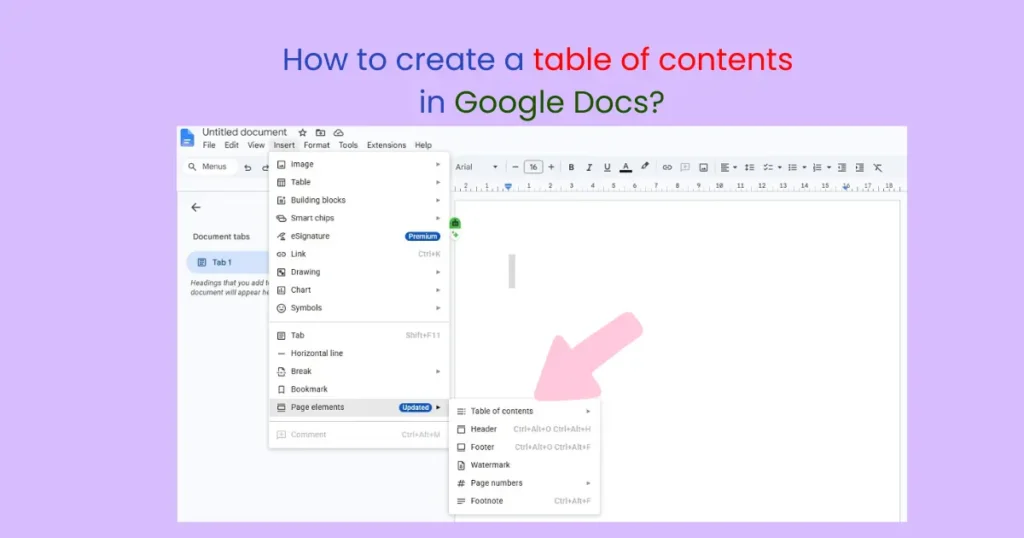
Does Google Docs have a TOC as well?
Yes, Google Docs also has a table of contents feature, which is sufficient if you write articles or blog posts for yourself or other websites and is enough for simple document editing, but Microsoft Word offers more advanced features and customization options.
FAQ Section
1. What are the steps to create a table of contents?
First of all, you have to correctly format your headings 1, 2, 3…, and then place the cursor where you want to add the TOC and then go to the Reference menu and select the “table of contents” option. It will automatically detect and create a table of content for you.
2. How do I create a table of contents in Word?
Go to the Reference menu and select “Table of contents.” It will automatically create a TOC for you.
3. How do I create a TOC manually?
In the MS Word editor, you first go to the Reference menu, and in the table of contents dialog box, select the custom table of contents, and after that, choose the Modify option to change the formats and style of the TOC.
Read Also: 10 Useful Apps to Download: Android App Store.
Conclusion
If you want to create a professional document in Microsoft Word, learning how to make a table of contents is very important. It not only keeps your document organized but also improves the reader’s experience, and the good thing is that creating a TOC in Word is not difficult. You just need to format the headings correctly, and Word will do the rest automatically.
Always remember: Heading style + References tab + Update Table = Perfect TOC
Once you learn this process, you can easily use it in every document. Whether you are a student, blogger, writer, or office worker, this skill will be very useful for you. So the next time you create a long document in Word, always make sure to add a TOC.
Note: This guide has been created based on Microsoft’s official documentation and practical testing.
Read Also: 6 Must-Have Student Apps of 2026